
Amazon S3 for WooCommerce lets you securely and reliably deliver digital products—such as downloads, music, PDF resources, design files, or software—directly from your Amazon S3 bucket through your WooCommerce store. The plugin uses presigned URLs for time-limited, piracy-resistant file access, supporting large files and high-traffic stores while eliminating the bandwidth limitations of your web host.
Table of Contents
- Overview & Key Features
- Installation & First Steps
- Plugin Settings
- Attaching S3 Files to Products
- Customer Support Workflow
- Testing & Debugging
- Customer Download Experience
- FAQ & Troubleshooting
- Support & Resources
1. Overview & Key Features
S3 Delivery WooCommerce Pro is the most secure, easiest way to deliver digital products from Amazon S3 via WooCommerce. Your customers get beautiful, expiring download links and you get total control—no public S3 URLs, no confusion, no headaches. Designed for non-coders and developers alike.
Core Features
- Secure, expiring Amazon S3 download links for every WooCommerce order
- Prominent, styled “Download” button for customers (no CSS or theme edits required)
- 30-second customer support workflow – generate fresh download links instantly
- Admin testing without incognito mode – test links with one click
- Works with all digital file types (PDF, ZIP, video, images, audio, and more)
- Instant test & debug tools built in
- Auto-injected CSS: looks great on any theme
- Admin-only logs and troubleshooting
- Easy setup in minutes
Perfect For
- Selling WordPress plugins, themes, or digital products
- Delivering large files without hosting bandwidth limits
- Professional customer support for lost or expired download links
- Churches, ministries, and non-profits delivering digital resources
- Anyone who needs secure, reliable file delivery through WooCommerce
2. Installation & First Steps
Install the Plugin
- Upload the plugin: Upload
s3-delivery-woocommerce-pro.zipto/wp-content/plugins/or install via the WordPress admin panel - Activate the plugin: Go to Plugins → Installed Plugins → Activate S3 Delivery WooCommerce Pro
- Locate the menu: Find the new “S3 Delivery Pro” menu item in your WordPress admin sidebar
Configure AWS Credentials
- Navigate to: S3 Delivery Pro → S3 Delivery Pro (first submenu item)
- Enter AWS Details:
- AWS Access Key ID
- AWS Secret Access Key
- S3 Region (must match your bucket)
- S3 Bucket Name (case-sensitive)
- Link Expiry Time (default: 60 minutes)
- Save Changes
That’s it—you’re ready to connect your products!
Understanding the Menu Structure
After installation, you’ll see these pages under “S3 Delivery Pro”:
| Menu Item | Purpose | When to Use |
|---|---|---|
| S3 Delivery Pro | Configure AWS credentials and settings | Initial setup, changing S3 bucket |
| Download Links | Generate download links by order ID | Daily customer support |
| Test Downloads | Test files by product ID | Verify S3 files are attached correctly |
| Debug Tools | View logs and troubleshoot issues | When something isn’t working |
3. Plugin Settings
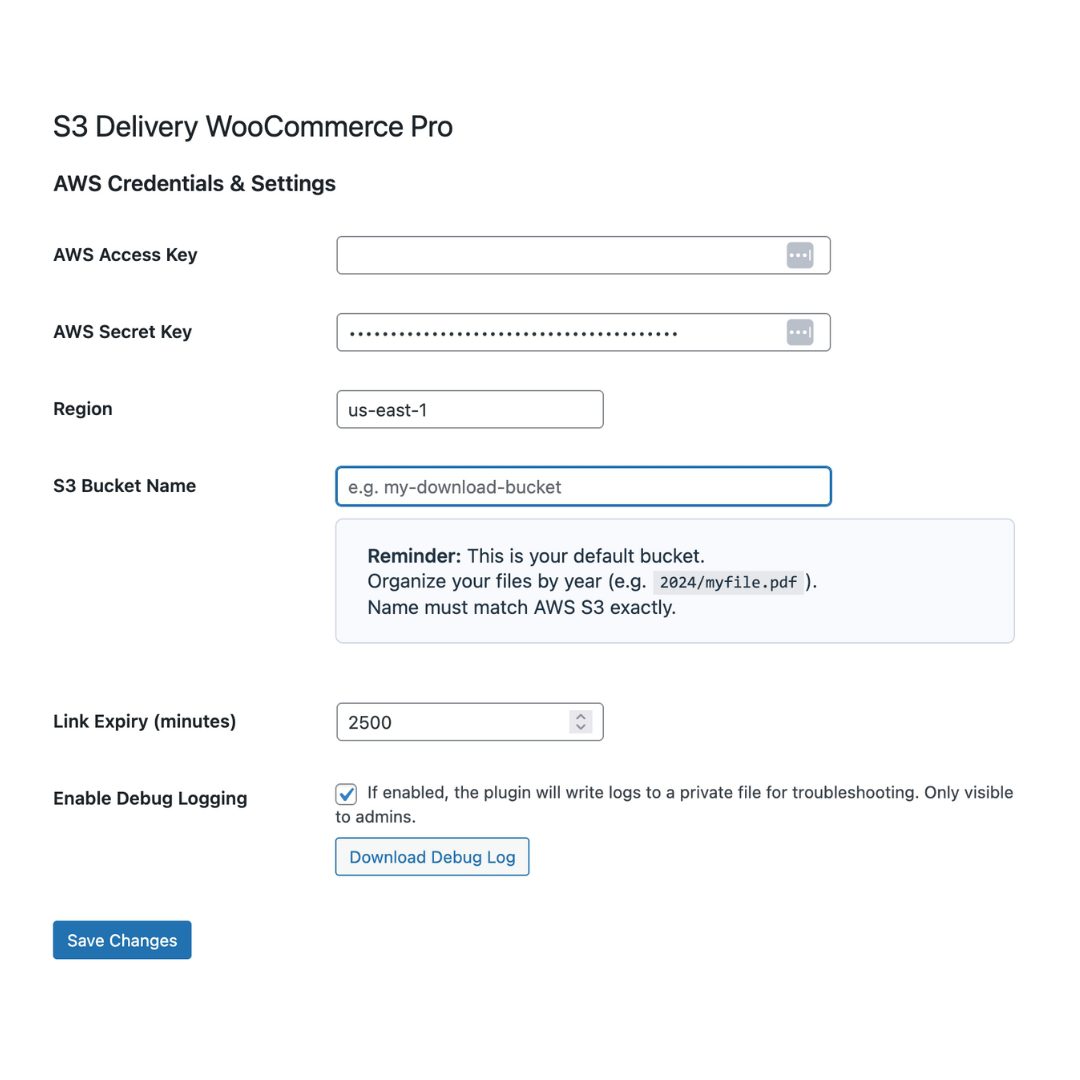
Navigate to S3 Delivery Pro → S3 Delivery Pro to access all configuration options.
AWS Configuration
AWS Access Key ID
Your AWS access key with S3 s3:GetObject permission. Create this in AWS IAM.
AWS Secret Access Key
Your AWS secret key (kept secure and never displayed after saving).
S3 Region
Must match your S3 bucket’s region. Common options:
us-east-1(US East – N. Virginia)us-west-2(US West – Oregon)eu-west-1(Europe – Ireland)
S3 Bucket Name
The exact name of your Amazon S3 bucket. Case-sensitive, no trailing slashes.
Download Link Settings
Link Expiry (minutes)
How long download links remain active. Default: 60 minutes.
- Shorter time = More secure
- Longer time = More customer convenience
- Recommended: 60-120 minutes
Debug Options
Enable Debug Logging
Check this to log all download attempts and plugin actions. Logs are admin-only and help troubleshoot issues.
Note: Debug logs can be viewed and downloaded from the Debug Tools page.
4. Attaching S3 Files to Products
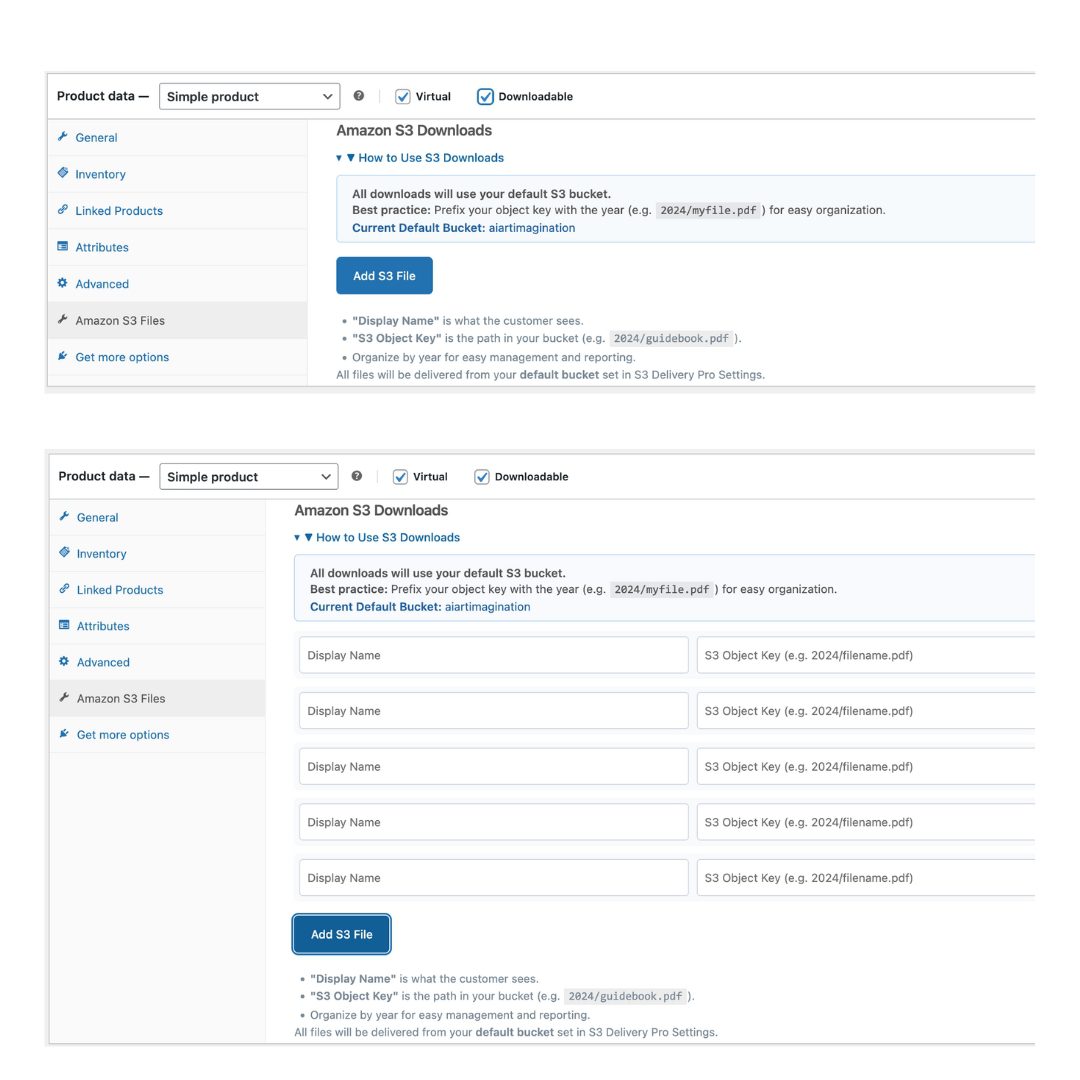
You can attach one or more Amazon S3 files to any WooCommerce product. Each file can have a user-friendly label (Display Name) and the S3 Object Key (the path in your bucket).
Step-by-Step
- Edit a product in WooCommerce (Products → All Products → Edit)
- Scroll to Product Data panel
- Click the “Amazon S3 Files” tab
- Add file details:
- Display Name: What customers see (e.g., “WordPress Plugin v2.0”)
- S3 Object Key: Full path in S3 bucket (e.g.,
2026/my-plugin.zip)
- Click “Add File” to add more files to the same product
- Save the product
S3 Object Key Format
The S3 Object Key must match exactly what’s in your S3 bucket:
✅ Correct Examples:
2026/wordpress-plugin.zipplugins/my-product-v1.0.zipdownloads/ebook.pdf
❌ Incorrect Examples:
/2026/file.zip(don’t include leading slash)file.zip(include folder if file is in one)2026\file.zip(use forward slashes, not backslashes)
Multiple Files Per Product
You can attach multiple files to one product:
- Main plugin file
- Documentation PDF
- Video tutorial
- Bonus materials
Each file gets its own download button with its Display Name.
5. Customer Support Workflow
The 30-Second Support Process
When a customer emails “I lost my download link,” here’s your workflow:
Step 1: Open Download Links
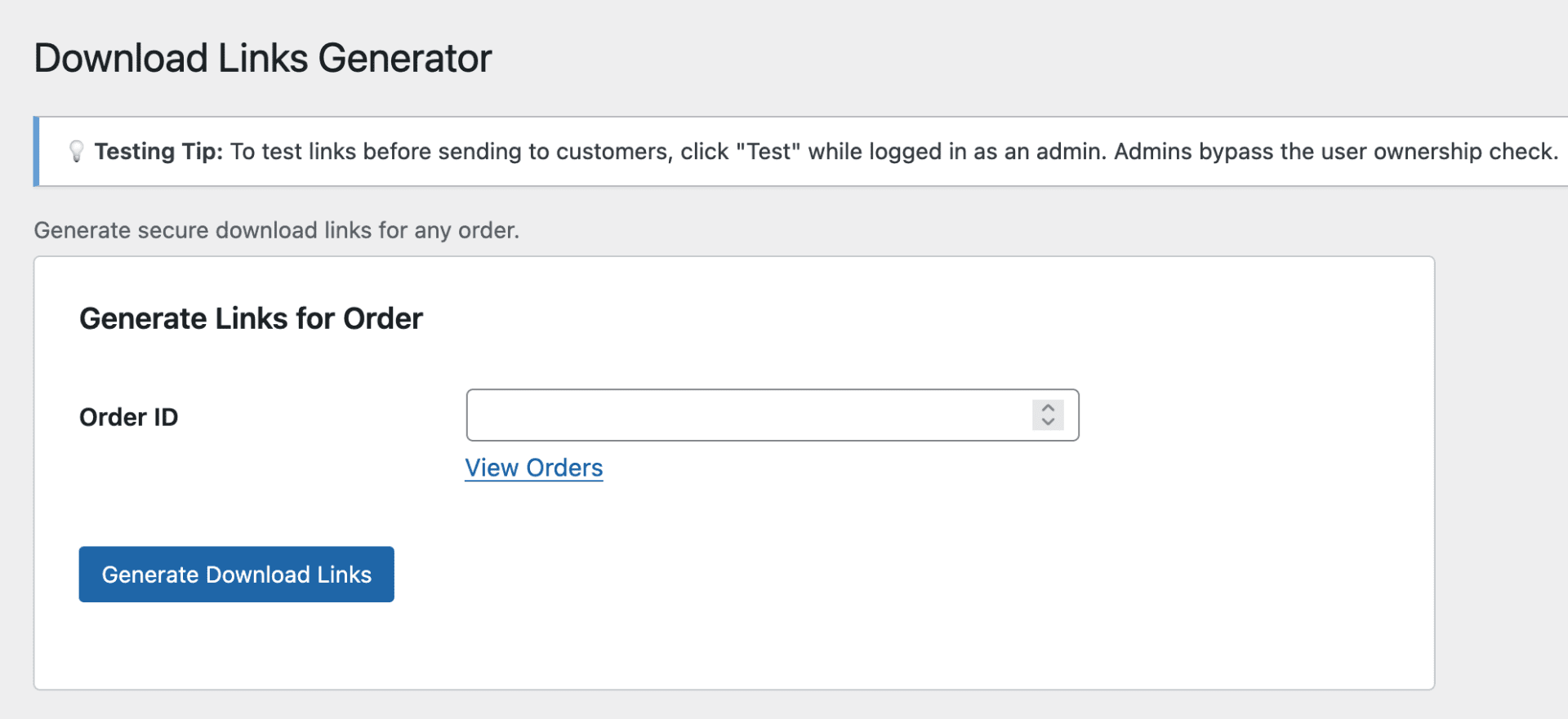
Navigate to S3 Delivery Pro → Download Links
Step 2: Enter Order ID
Type or paste the order number (find it in WooCommerce → Orders)
Step 3: Generate Links
Click the blue “Generate Download Links” button
Step 4: Test the Link
Click the “Test” button next to the generated link
- As an admin, you can test directly (no incognito mode needed!)
- File downloads successfully? You’re good to go ✅
Step 5: Email to Customer
- Enter customer’s email address
- Click “Send via Email”
- Or copy the link and paste into your own email
Total Time: 30 seconds ⚡
Testing Tip
? To test links before sending to customers, simply click the “Test” button. As a logged-in administrator, the ownership check is automatically bypassed so you can verify downloads work correctly. No incognito mode or private browsing required!
Email Template
Hi [Customer Name],

Here's your download link for order #[ORDER_ID]:

[DOWNLOAD LINK]

This link expires in 60 minutes for security, so please download soon.

If you have any issues downloading, just reply to this email and I'll help you out.

Thanks for your purchase!

[Your Name]
Common Support Scenarios
“I accidentally deleted the download email”
→ Generate fresh link, takes 30 seconds
“The download link expired”
→ Generate fresh link with new 60-minute window
“I need to download on a different device”
→ Generate fresh link, customer can use on any device
“The file won’t download”
→ Use Test Downloads page to verify S3 file exists and is configured correctly
6. Testing & Debugging
Test Downloads Page
Use this page to verify S3 files are attached correctly to products.
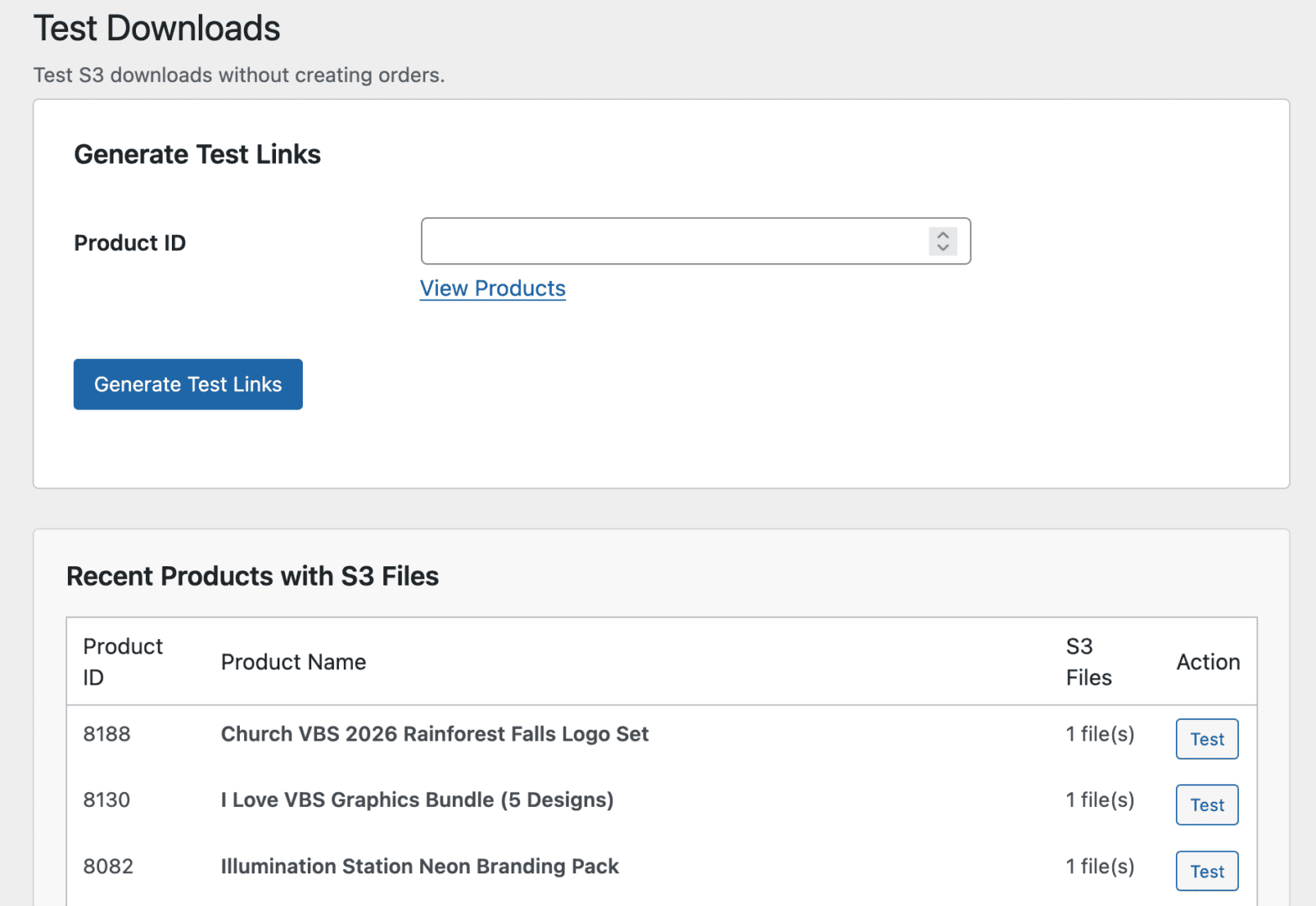
Navigate to: S3 Delivery Pro → Test Downloads
Process:
- Enter a Product ID (find in Products → All Products)
- Click “Generate Test Links”
- Review the S3 files attached to that product
- Click “Test Download” to verify the file downloads correctly
When to use:
- After attaching S3 files to a new product
- Troubleshooting customer download issues
- Verifying S3 bucket configuration
Debug Tools
Enable detailed logging to troubleshoot issues.
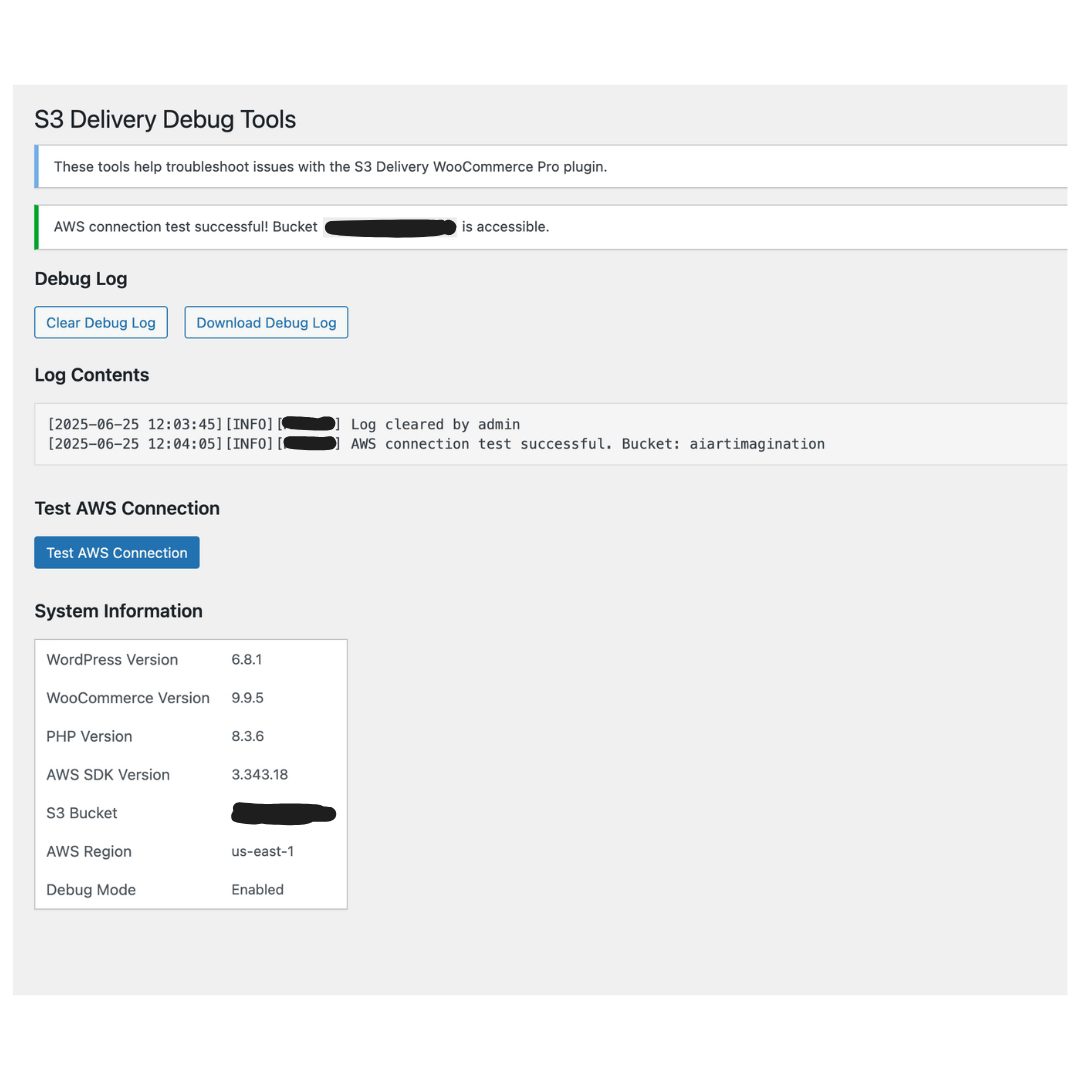
Navigate to: S3 Delivery Pro → Debug Tools
Features:
- Enable Debug Logging: Track all download attempts and plugin actions
- View Logs: See recent activity and error messages
- Download Logs: Save logs for support tickets
- Clear Logs: Remove old log entries
When to enable:
- Setting up the plugin for the first time
- Customer reports download issues
- Testing new S3 bucket or AWS credentials
- Submitting support requests
Built-in Connection Test
The settings page includes a connection test feature:
- Go to S3 Delivery Pro → S3 Delivery Pro
- Scroll to the bottom
- Click “Test AWS Connection”
- Verify your credentials and bucket access are working
7. Customer Download Experience
After purchase, your customers see a large, blue “Download” button in their order details page—styled for maximum clarity and conversion.
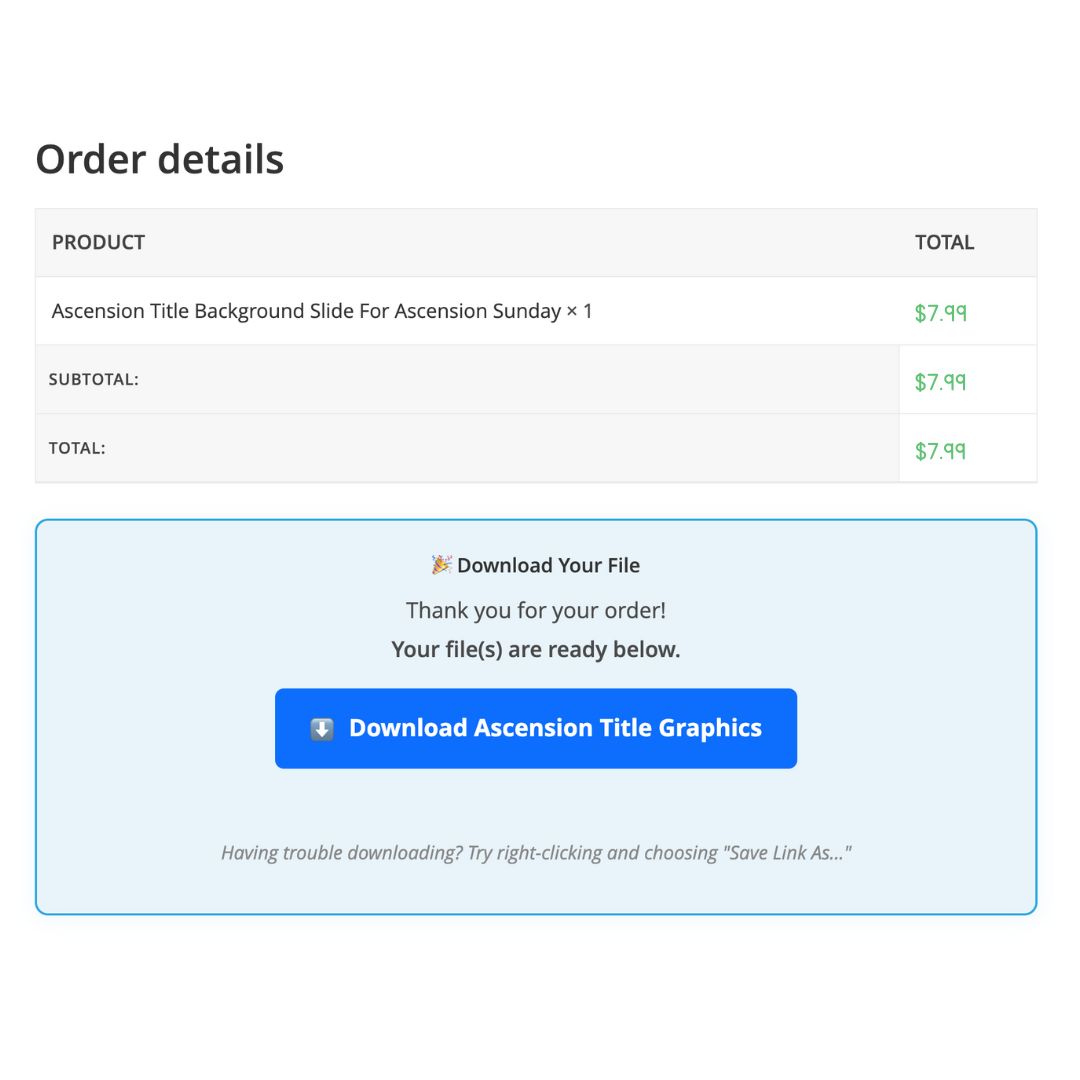
What Customers See
Order Confirmation Email:
- Standard WooCommerce order details
- Clear “Download” button or link
- Works with every email client
My Account → Orders:
- Order history with download buttons
- Each file listed with its Display Name
- Professional, easy-to-find download access
Order Details Page:
- Prominent blue “Download” button
- Multiple files shown separately
- Clear expiration information (if applicable)
Customer Experience Benefits
✅ Works with every WooCommerce theme – no custom CSS required
✅ No more missed links or support tickets about “where’s my download”
✅ Professional appearance – builds trust and credibility
✅ Mobile-friendly – downloads work on any device
✅ Secure – each link is unique to the customer and order
Visual Comparison
Before S3 Delivery Pro:
Plain text download link (easily missed, unprofessional)
After S3 Delivery Pro:
Large blue download button (impossible to miss, professional appearance)
8. FAQ & Troubleshooting
General Questions
Q: Why do files sometimes open in the browser instead of downloading?
Browsers may auto-display certain file types (like PDFs or images). The plugin sets Content-Disposition: attachment, but browser settings can override this. Tell customers to right-click and select “Save Link As” to force download.
Q: What file types are supported?
Any file type that can be stored in Amazon S3—PDF, ZIP, MP4, MP3, JPG, PNG, DOCX, etc. No limits on file types.
Q: How large can files be?
Amazon S3 supports files up to 5TB. Your only limit is S3 storage space.
Q: Can customers share their download links?
No. Each link is order-specific, user-specific, and expires after your configured time window (default 60 minutes). Links cannot be shared or reused.
Q: Is custom CSS or theme editing required?
No. All styling is automatically applied by the plugin. Works with any WordPress theme out of the box.
Troubleshooting
Issue: “Invalid or expired download link” error
Solutions:
- Generate a fresh link (Download Links page)
- Verify S3 Object Key exactly matches AWS console
- Check AWS credentials in plugin settings
- Test AWS connection from settings page
Issue: Download links not appearing for customers
Solutions:
- Edit product → Amazon S3 Files tab → verify files are attached
- Check order status is “Completed” or “Processing”
- Manually generate link via Download Links page
Issue: Testing doesn’t work (admin ownership error)
This was fixed in v2.0.8.
Solution:
- Update to v2.0.8 or later
- Logged-in admins can now test links directly
- No incognito mode required for admin testing
9. Support & Resources
Getting Support
Email Support: wayvisuals@gmail.com
When contacting support, please include:
- Your order number
- WordPress version
- WooCommerce version
- Plugin version
- Description of the issue
- Debug logs (if available)
- Screenshots
Response time: Within 24-48 hours on business days
Quick Reference
Daily Customer Support:
S3 Delivery Pro → Download Links → Enter Order ID → Generate → Test → Email
Testing Product Downloads:
S3 Delivery Pro → Test Downloads → Enter Product ID → Generate Test Links → Test
Troubleshooting Issues:
S3 Delivery Pro → Debug Tools → Enable Logging → View Logs
Configuration:
S3 Delivery Pro → S3 Delivery Pro → Enter AWS credentials → Save
Version Information
Current Version: 2.0.8
Last Updated: January 2026
Compatibility: WordPress 5.8+, WooCommerce 5.0+, PHP 7.4+
Recent Updates (v2.0.8)
- ✅ Fixed double URL-encoding issue with S3 keys
- ✅ Added admin override for ownership check (test without incognito)
- ✅ Improved backward compatibility with older links
- ✅ Enhanced Download Links generator interface
Questions? Email wayvisuals@gmail.com for support.